Today, Smart TVs are widely used to watch movies, series, and online content. However, some services may be unavailable in certain countries or regions. In such cases, users use TV proxy.
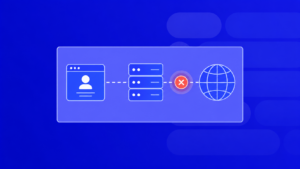
A TV proxy server acts as an intermediary between your TV and the internet, hides your real IP address, and allows you to bypass restrictions, providing safer and more convenient access to content.
Why Use a Proxy on Your TV?
A proxy server on your TV is used for various purposes. For example:
Bypassing geo-restrictions
A proxy server can help you access content that is blocked in your country or region. For instance, if you want to watch a movie or series available only in a specific country, using a proxy server will help bypass this restriction.
Increasing internet speed
A proxy server can improve internet speed, especially if you use it to access content that is closer to the proxy server’s location.
Traffic management
A proxy server helps manage traffic on your TV, optimizing it for better performance.
Using a proxy server on your TV improves internet performance and provides a higher level of online security and privacy.

How to Choose a TV Proxy Provider?
To choose a quality proxy server for your TV, pay attention to several important factors.
- Connection speed. One of the most important parameters when choosing a proxy server is connection speed. The higher the speed, the faster content will load and applications will work. PROXY-MAN proxies provide high-speed connections and comfortable internet usage.
- Price. The cost of a proxy server is also important. Our service offers quality connections at competitive prices.
- Reliability. Choose a proxy server that guarantees a stable connection without interruptions or delays. Our proxies are highly reliable and stable, avoiding connection problems.
- Anonymity. Using a proxy server should ensure internet anonymity. PROXY-MAN proxies guarantee full anonymity, hiding your real IP address and protecting personal data.
How to Connect Smart TV to the Internet via a Proxy Server
- On the main screen, find and select “Network Settings.”
- Click “Ethernet.”
- Then select “Advanced Settings.”
- Find and click “Proxy Settings.”
- If you don’t want to use a proxy server, select “Do not use a proxy server.” If you want to configure a proxy, choose “Set up manually.”
- Enter the proxy server hostname.
- Enter the proxy server port.
- If configured correctly, a message will appear: “Settings saved.”

Setting up a Proxy on Philips TV
To set up a proxy server on a Philips TV:
- Open the settings menu using the remote control button.
- Select “TV Settings.”
- Within this section, find the “Settings” subsection.
- Then go to “Network & Internet.”
- Here you will see “Proxy Settings” — select it.
- In the opened window, you can choose automatic detection or manual input. To enter proxy server data manually, choose “Manual.”
- Enter the proxy server hostname and, if necessary, the port.
- Save the changes.
Additionally, you can configure network and IP settings:
- Go back to “Network & Internet” and select “IP Settings.”
- Here you can change the IP address, subnet mask, gateway, and DNS server settings.

Setting up a Proxy on LG TV
To set up a connection, follow these steps only once. After initial configuration, the connection will work automatically.
Note that different TV models may have different interfaces, so use this guide as a reference. It is also recommended to update the firmware to the latest version.
- Turn on LG Smart TV and open Settings.
- Scroll down to “Network” and select “Network Connection.”
- Ensure the TV is connected via wired or wireless network, then click “Start Connection.”
- Select your network and click “Choose another network list.”
- Select “Expert Settings Button.”
- Select your network connection.
- Scroll down to “DNS Mode,” choose “Manual,” and enter the Smart DNS proxy server IP from the available DNS list. Select two servers closest to your physical location.
The system will check the connection. Then click “OK” to save settings and exit the menu.
For the first setup, it is also recommended to visit the service website from a computer connected to the same network so the system can determine your IP address.